

Step-By-Step Guide
As a part of a recent Online Banking security enhancement, customers logging in from an unrecognized device or browser are now required to verify their identity using a One-Time Passcode (OTP) sent to the email address associated with their online Banking profile.
This enhancement is designed to better protect your account. However, it may impact legacy Business Online Banking customers who use certain third-party services, such as QuickBooks or Quicken connections, and how they access your account information.
To ensure a smooth experience, please:
- Verify your email address on file is current
- Check your spam/junk folder for passcode emails
- Allow a few minutes for that One-Time Passcode to deliver.
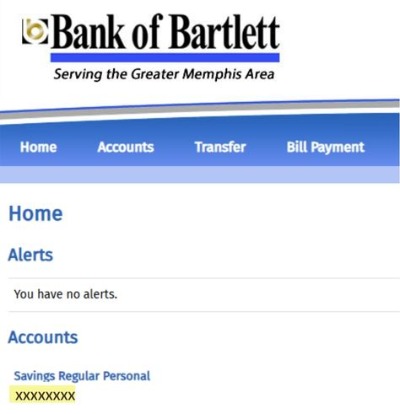
If you continue to experience issues, please contact us for assistance. Below are helpful visual aids to temporarily download your transactions directly from your online banking portal as a Web Connect (.QBO) file and manually upload them into QuickBooks.
.jpg)
2. Navigate to the account you are inquiring
about to show transaction activity.
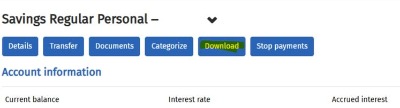.jpg)
3. Next, click on Download
.jpg)
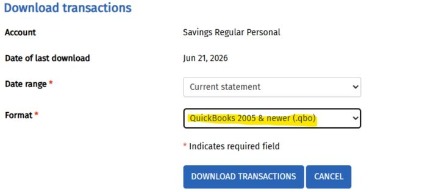
4. And download transactions into the (.qbo) file: You will need to use the dropdown to choose the Date Range and Format.
By following these steps, you can continue accessing your transaction data securely while adapting to our enhanced authentication process. We appreciate your understanding as we work to keep your accounts protected. If you have any questions or need additional support, the Bank of Bartlett team is always here to help. Have questions? Give us a call: 901.382.6600